Why your Unity menus tank the frame rate
The menu opens and the frame time doubles. Nothing in it moves, nothing is expensive to draw, and yet the profiler says the interface is costing more than the game. Here is what is actually happening, in the order it usually happens.
In this article
Open to new projects
Hadjoudj Idris
Game UI/UX Designer
Upwork100% Job Success
Hire me Browse the workInterface performance problems are rarely about drawing pixels. They are about how much work Unity redoes when something changes, and interface is full of things that change. Almost every case I have been sent comes down to five or six causes, and most of them are decided while the screens are being built rather than at the end.
The canvas rebuild is the whole story
In uGUI, a Canvas batches its children into meshes for rendering. When anything on that canvas changes in a way that affects its geometry, the canvas is marked dirty and it rebuilds as a unit. Not the element. The canvas.
That is the sentence to remember: one changing element dirties an entire canvas. A score counter ticking up every frame in the corner of a screen with four hundred static elements makes Unity redo work for all four hundred, sixty times a second.
- What dirties a canvas: changing text, enabling or disabling a graphic, moving or resizing a RectTransform, changing a colour or fill amount, anything that triggers a layout pass.
- What does not: changing a material property that does not touch geometry, and moving the canvas itself in world space.
- Where it shows in the profiler:
Canvas.SendWillRenderCanvases,Canvas.BuildBatch, and the layout entries that run before them.
Split canvases by how often things change
The fix follows directly from the cause. A nested canvas isolates its own rebuild, so the trick is to group elements by change rate rather than by visual grouping.
- 01
Static canvas
Backgrounds, frames, labels that never change, decorative art. This should rebuild once and then never again for the life of the screen.
- 02
Occasional canvas
Things that change on player action: selected states, panel contents, tab switches. Rebuilds when something happens, which is fine.
- 03
Per-frame canvas
Timers, health bars, score counters, anything animating. Give these their own small canvas with as few elements on it as possible, and the per-frame rebuild becomes trivial because there is almost nothing to rebuild.
This one change fixes more Unity UI performance problems than everything else on this page combined. It also costs nothing artistically, which is why it belongs in the design handoff as a note rather than in an optimisation pass six months later.
Raycast Target is on by default, on everything
Every Graphic in uGUI has Raycast Target enabled when it is created. Every one of those is tested when the player moves a pointer or the input system checks for a hit. On a busy screen that is hundreds of tests per event, and the overwhelming majority of them are on things nobody can click: labels, icons, background panels, decorative frames.
- Turn it off on everything that is not interactive. Text, icons inside buttons, decorative images, dividers.
- Keep it on one element per interactive control, usually the button's own background, not its label and icon as well.
- Large invisible images are the worst case: a full-screen transparent image with Raycast Target on will intercept everything and cost a test every time.
- Use a non-drawing raycast surface where you need a hit area with no visuals, rather than an Image with alpha zero, which still draws.
Layout groups, and what they cost
Vertical and horizontal layout groups with content size fitters are a lovely authoring convenience and an expensive runtime one, especially nested. Each one recalculates on any change beneath it, and a fitter inside a group inside a fitter can rebuild several times in a single frame.
- Use them where content genuinely varies, such as a list of unknown length or text that changes with localisation.
- Do not use them for fixed layouts. If the positions are known, anchor the elements and be done.
- Never nest three deep. Two is usually the practical ceiling.
- For long lists, do not use them at all: position items by index instead, which is what a pooled list does anyway. See fast lists in Unity.
- Bake the layout when it stops changing. Some teams run the group once and then disable it, keeping the result.
Overdraw: the transparent stack you cannot see
Interface is almost entirely transparent geometry, and transparent geometry is drawn back to front with no depth rejection. Every scrim, every panel over a panel, every soft shadow costs a full-screen fill each time. On mobile and handhelds this is frequently the actual bottleneck rather than anything CPU-side.
- Delete panels the design does not need. The quietest interface is also the cheapest one, which is a rare case of taste and performance agreeing.
- Do not stack full-screen scrims. A pause menu over a dimmer over a blur over the game is four full-screen passes.
- Trim transparent padding out of sprites. Empty pixels still cost fill.
- Never use alpha zero to hide something. A fully transparent graphic is still drawn. Disable the object, or disable the Canvas component.
- Check the scene view's overdraw mode. It shows the stack immediately and it is the fastest diagnostic on this page.
Hiding a screen properly
There are three ways to hide interface in uGUI and they cost very different amounts. This gets picked at random more often than it gets decided.
| Method | What it costs | Use when |
|---|---|---|
| Disable the GameObject | Nothing runs, nothing draws. Re-enabling costs a rebuild | The screen is closed and will not reopen immediately |
| Disable the Canvas component | Nothing draws, hierarchy stays alive, no rebuild on return | The screen is toggled often, such as a pause menu or a tab |
| CanvasGroup alpha 0 | Still drawn, still raycast unless you also disable that. The most expensive option | You are fading it, and only while the fade runs |
Atlases, draw calls and broken batches
Unity batches consecutive UI elements that share a material and texture. Any element drawn between them from a different atlas breaks the batch, and interface is drawn in hierarchy order, so a badly ordered screen can turn twelve elements into twelve draw calls.
- One atlas per screen or per feature, not one enormous atlas for the whole game and not one texture per sprite.
- Keep text and images grouped rather than interleaved where the layout allows, since text uses its own material.
- Watch the order in the hierarchy, because that is the draw order. Two panels from different atlases stacked alternately will break batching repeatedly.
- Check it in the Frame Debugger, which tells you exactly which element broke a batch and why.
Text is the most frequently updated thing you own
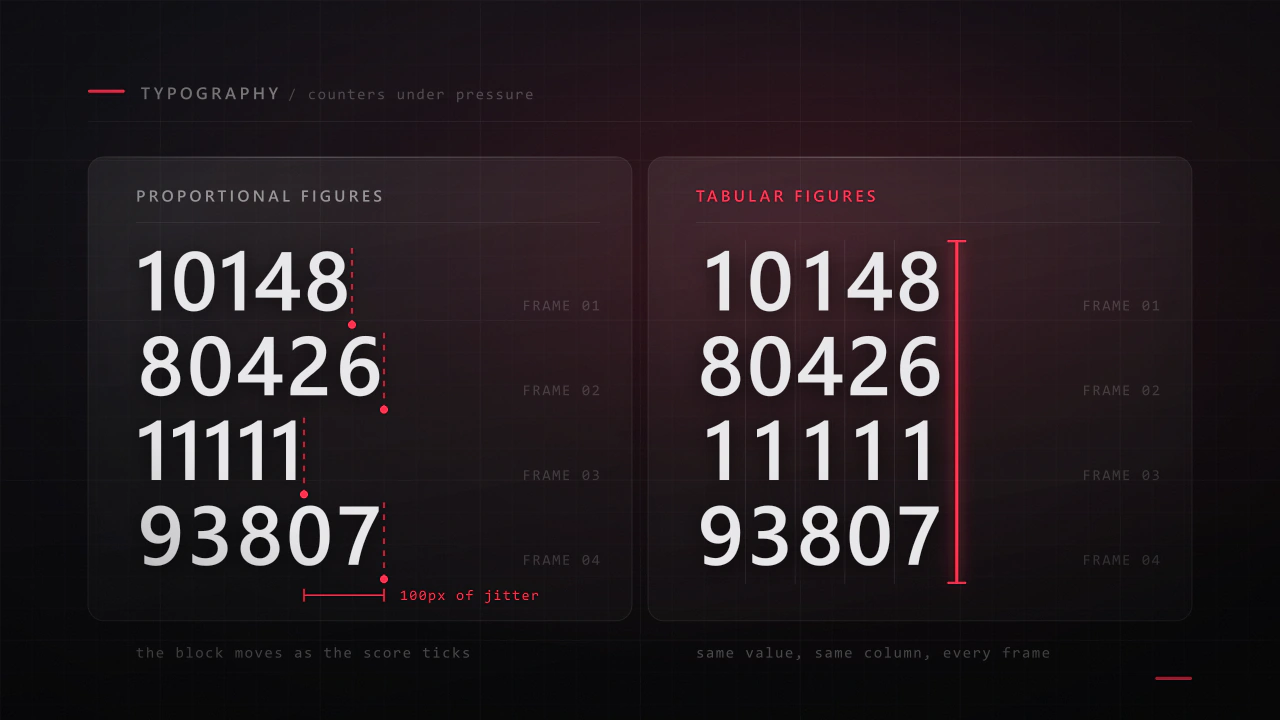
TextMeshPro regenerates its mesh when the string changes. A per-frame counter therefore rebuilds text geometry sixty times a second, dirties its canvas, and allocates a new string on every update if it is being formatted naively.
- Only set text when the value actually changed. Compare first, then assign. This one line removes most of the cost.
- Round to what the player can read. A timer displayed to two decimals does not need updating every frame; ten times a second is invisible and six times cheaper.
- Avoid allocating strings per frame. Cache formats, or use a set of pre-built strings for small ranges.
- Put frequently changing text on the per-frame canvas, alone, for the reason at the top of this article.
Animators on things that are not animating
An Animator component has a cost every frame it is enabled, whether or not anything is moving. A screen with sixty buttons, each with an Animator for its hover state, is paying sixty times that for an idle menu.
- Use Selectable transitions (colour tint or sprite swap) for simple button states rather than an Animator each.
- Use code-driven tweens for interface motion. They are cheap, they can be pooled, and they stop when they finish.
- Reserve the Animator for the few elements with genuinely authored, multi-property, keyframed sequences.
- Disable Animators when their screen is not visible, which is free and frequently forgotten.
Measure, do not guess
Every fix above is cheap, and applying all of them blindly is still worse than applying two of them to the right screen. The tools are already in the editor.
| Tool | What it tells you |
|---|---|
| Profiler, CPU module | Canvas.SendWillRenderCanvases and Canvas.BuildBatch are your rebuild cost; layout entries above them are layout groups |
| Profiler, UI and UI Details modules | Which canvases rebuilt, how often, and what triggered them |
| Frame Debugger | Draw call by draw call, including exactly what broke each batch |
| Scene view overdraw mode | The transparent stack, instantly |
| Profile on the target device | A desktop CPU hides all of this. Handhelds and phones do not |
Interface performance is almost never about how it looks. It is about how often you make Unity redo work it already did.
If you are on UI Toolkit
Most of the specifics above are uGUI's, because the canvas rebuild is a uGUI concept. UI Toolkit has a different model and, in Unity 6, jobified mesh generation, parallelised text generation and substantially faster event dispatch. It is generally the stronger performer as element counts rise, which is one of the reasons to pick it, as discussed in uGUI or UI Toolkit.
- Layout still costs. Deep hierarchies and expensive flex layouts recalculate, so structure matters here too.
- Use ListView for long lists. It virtualises, which is the whole battle in a data-heavy screen.
- Watch your USS selectors. Very broad or very deep selectors do more matching work than specific classes.
- Do not animate layout properties when you can animate transforms and opacity instead. This is the same rule as on the web, for the same reason.
A one-hour pass on an existing game
- Open the profiler on your heaviest screen, on the target device, and note the frame time.
- Find
Canvas.SendWillRenderCanvases. If it is significant, you have a rebuild problem. - Identify the element that changes most often and count its canvas siblings.
- Split that canvas into static, occasional and per-frame. Re-measure.
- Select every text and decorative image on the screen and turn off Raycast Target.
- Count nested layout groups. Remove any that are wrapping a fixed layout.
- Switch the scene view to overdraw and look for stacked full-screen elements.
- Open the Frame Debugger and count draw calls. Look for a batch broken by one interleaved sprite.
- Search for graphics hidden with alpha zero and hide them properly instead.
- Re-measure, and write down what each change was worth. Some will be worth nothing on your game, which is useful to know.
Why does my frame rate drop when a menu opens, even though nothing is moving?
Almost always the canvas rebuild on open, plus layout groups recalculating as the hierarchy is enabled. Opening a screen with a deep layout hierarchy can cost several frames in one hit. Disabling the Canvas component instead of the GameObject avoids the rebuild for screens that are toggled repeatedly.
How many canvases should a screen have?
As many as you have distinct change rates, which is usually two or three. Splitting further has diminishing returns, and every canvas is its own batch, so a hundred tiny canvases creates a different problem. Split by how often things change, not by visual grouping.
Does turning off Raycast Target actually matter?
On a screen with a handful of elements, no. On a dense screen with hundreds of graphics, or on mobile where input events are frequent, it is a measurable win and it takes two minutes. It also prevents a class of bug where an invisible image swallows clicks.
Is UI overdraw a real problem on PC?
Rarely the bottleneck on desktop, frequently the bottleneck on mobile and handhelds, where fill rate is the scarce resource. If you ship on Steam Deck or phones, check the overdraw view before you ship, particularly on screens that stack scrims and blurs.
Should I use an Animator for button states?
Usually not. Selectable's colour tint or sprite swap covers most cases at almost no cost, and code tweens cover the rest. An Animator per button is a per-frame cost multiplied by your button count, paid even when the menu is sitting still.
Will switching to UI Toolkit fix my performance problem?
Sometimes, and not automatically. UI Toolkit scales better with element count, but a badly structured screen is slow in any system, and migration is a rebuild rather than a conversion. Fix the canvas structure first: it is a day of work and it usually resolves the problem you were going to migrate for.
Can a designer prevent any of this?
Most of it. Canvas grouping by change rate, atlas grouping, avoiding stacked full-screen effects and keeping layouts simple are all decisions made while the screens are designed. Writing them into the handoff costs nothing and saves an optimisation pass later, which is part of what a proper Unity handoff contains.
Hadjoudj Idris
Game UI/UX Designer, Remote, worldwide
Need this done properly on your game?
Menus, HUDs, a full UI system, or one screen that isn't working. Tell me what you're building and I'll tell you honestly whether I'm the right fit, and what it would cost.
Upwork100% Job Success